

Hello there, I am Info Pang. I am your guide to survive Madrigal, and I have a lot of useful information. Are you ready to learn the lessons needed to survive in this world? You can also check the information that you’ve learned by using my menu.
Let’s go through how the camera works. The camera is handled with the Mouse and Keyboard. Let’s go with the Mouse first. Move the Mouse pointer to where you want to see while holding down the right-click button, and the camera will rotate.
| Clear Condition: Camera Rotation (Mouse) |
Let’s go through how the camera works with the Keyboard. Here’s how the camera works with the Keyboard.
Up : <Up Arrow>
Down : <Down Arrow>
- Left : <Left Arrow>
- Right : <Right Arrow>
How is it? Easy, then let’s look into how to zoom in and out. Zooming in and out is possible with the mouse wheel. It is also possible with the Page Up and Page Down Keys.
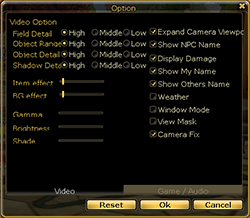
Click the Start button and choose the option, then check the expand camera option under the ‘Video’ tab (This will make it so your camera is very far behind you)
| The area you will adventure in is called Madrigal. Click ‘M’ if you want to check your current location or check the map of other areas. Click ‘M’ or Esc to resume your gameplay. | 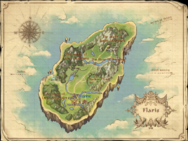 |
| Clear Condition: Hot key ‘M’ (Keyboard) |
| Let’s go through the Navigator. You can check your location and the surrounding area with the Navigator that’s in the upper right part of the screen. Activate and deactivate it by clicking ‘N’ | 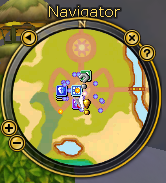 |
| Clear Condition: Hot key ‘N’ (Keyboard) |
- How do you chat with others? Click ENTER to activate the chat window.
Normal
- Normal chat is displayed to the users around you. Type what you want to say.
Shout
- Let’s learn how to shout. Shouting reaches a wider range of users than the normal chat. Add /s in front of what you want to say. Keep in mind that other players will not be able to see you shout until you are level 20.
Party
- Let’s learn about party chat. Don’t forget that party chat is only available when you are in a party. Add /p in front of what you want to say.
Whisper
- Wanna send a message to a specific user? Then whisper. Add /w CharacterName in front of what you want to say ( or right click on their name in the chat window)
Guild
- If you are a guild member, you can send messages to your Guild. Add /g in front of what you want to say.
Block
- As a new function, we can now block those annoying shouters simply by typing/Ignore CharacterName, and voila, no more chat flood. This resets when you exit the game.

System
- All the messages except for chat are displayed in the System Window. Click the SYSTEM button in the chat window to check it out
Filter
- If you want to see only the chat you want. Select each tab and click the filter button.
- Choose the chat kind that you want, and the rest will be filtered out.
| If you want to check the status of your character. Press ‘Menu’ and then ‘Status’ to view the status window. You will see info such as HP, MP, FP, and EXP. | 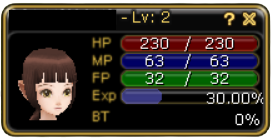 |
| The character window displays information about your character. You can also distribute the stat points you have gained by leveling. Press ‘H’ to view this window. | 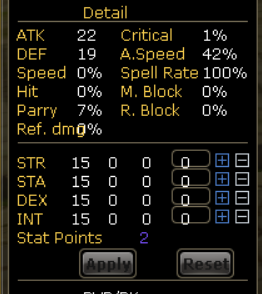 |
| Clear Condition: Hot Key ‘H'(Keyboard) |
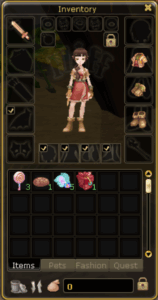
| Let’s go through the item equipment by clicking ‘I’. Double-click an item you want to equip or drag it to the spot you want to equip. |
|
| Clear Condition: Hot Key ‘I'(Keyboard) |
Let’s learn about the Quest Diary. The quest Diary displays information about the quests you’ve completed as well as any current quests you have. You can check the quest detail by clicking ‘Q’
Well done.Lets learn about the Quick Slot at the bottom of your screen. You can put items or skills into it so you can use them quickly. F1-F9 can be used as hotkeys.

Is it tough to hunt alone? Then make a party with others. It will be easier for you to kill boss monsters together with your party members. Use /PartyInvite CharacterName to invite a party member. You start with a basic party, and it will level the longer you continue to hunt.
| You can check information about your Party in the party window by clicking ‘P’. You can check your party members’ level and class. | 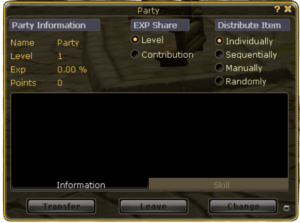 |
| Clear Condition: Hot key ‘P’ (Keyboard) |
Hold down the Alt and left-click on another character. Trade, Add to your Messenger, Party Invite, Guild Invite, Follow, Dueling, and Cheering are possible.
| Let’s learn about 1 on 1 trade. It is for trading items and Penya. Hold down Alt and left-click on the character, and select trade from the menu. | 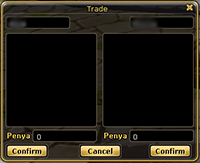 |
Do you have any unnecessary items? Then open a private shop and sell them to others. Click the Menu Button and click Private Shop in the menu.
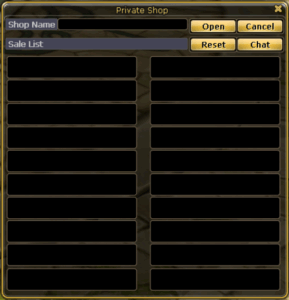 |
Clear Condition: Private Shop window open (Simply drag an item over to the shop window, then choose a price for the item. If you have more than one, don’t worry; if they stack in your pack, they will stack in your shop. The price you set is for 1 item, not for the stack. This goes for buying from others also. If it is in a stack, the shop will show you the price for the stack.) |
| Not enough space in your inventory? Don’t worry. You can use your bank by talking to the (Public Office) NPC in each town. Make sure to click Deposit from the NPC menu. You can meet the NPC in Flaris by heading south. Julia is next to the mailbox. | |

| Let’s learn about the Messenger Window. Click ‘E’ and you will see the Messenger Window. You can check a user’s connection status and also chat with them. Add your friends to the Messenger Window. | 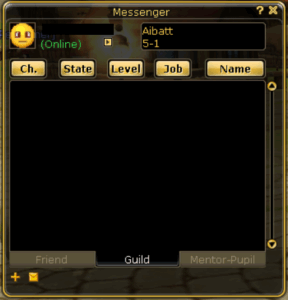 |
| Clear Condition: Hot Key ‘E’ |
 |  |  |  |  |  |  |  |  |  |  |  |  |  |  |  |  |  |  |  |  |  |  |  |  |  |  |  |  |
|---|
| Express yourself with your motions. Click “O” and the window for various emoticons and expressions will open. Try it now. | 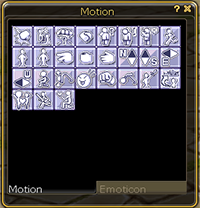 |
| Clear Condition: Hot Key ‘O’ |
You get one cheer point every hour you play Flyff. (up to 3) Click another character and click the cheer icon  in the Motion Window(Hot key ‘O’) or Alt+Mouse left button to cheer another character. Cheered characters will have an extra 5% EXP rate for 10 minutes.
We’re done with the lesson, so go start your adventure in Flyff. I promise to support you with updated info. At any time, please visit the Flyff homepage for further information. Shall we start the flyff adventure? Go talk to (General) Lui; he has quests for adventurers such as yourself.
For beginner quests, click below